Checklist: Validating PLC Logic Before New Automation
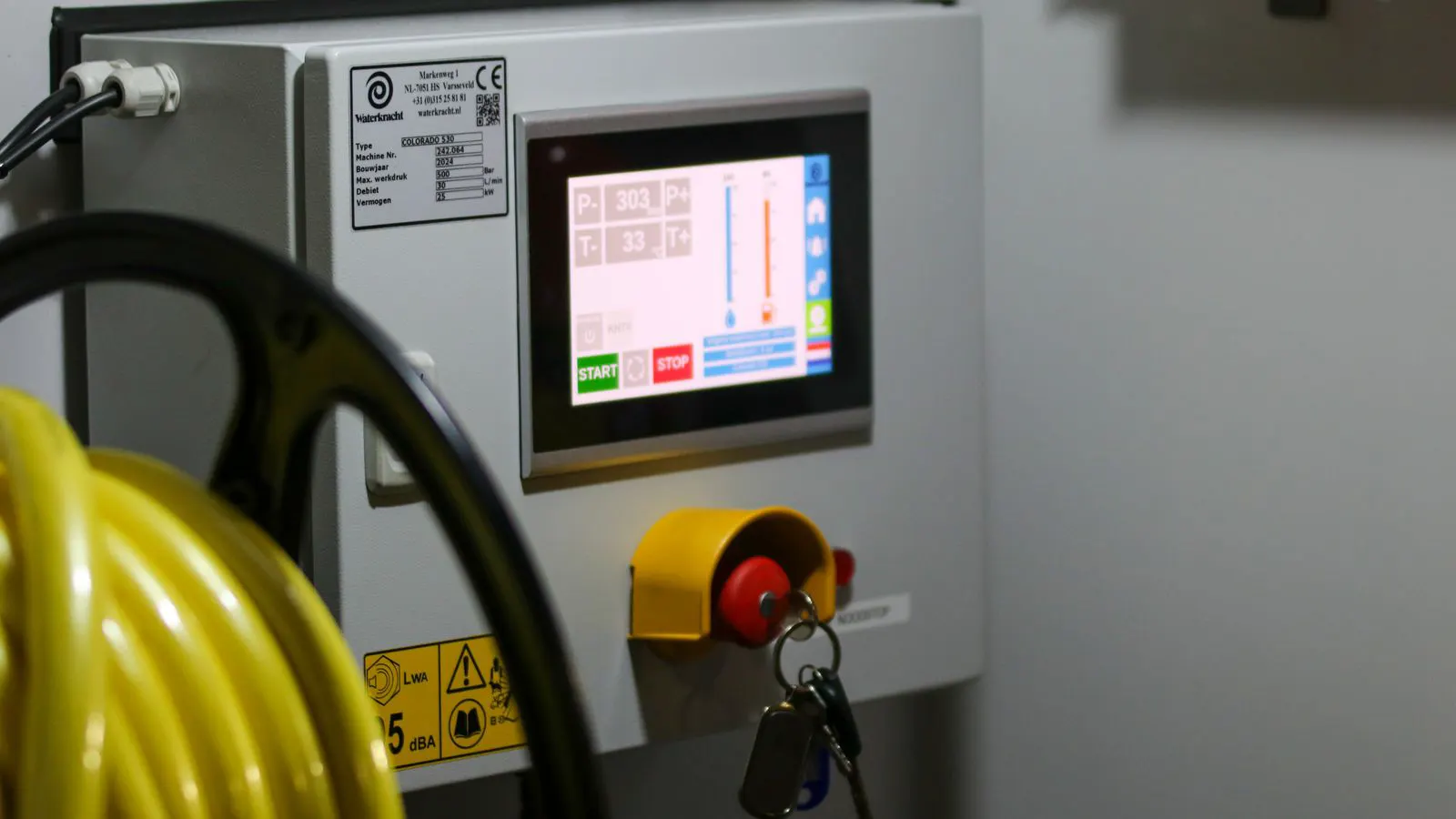
This guide provides a structured checklist for engineers to verify PLC logic, safety interlocks, and process integration before commissioning a new automated textile line. It covers pre-startup documentation, hardware checks, logic verification, safety validation, and final commissioning steps to prevent costly downtime.
- Verify all I/O points and signal names against the as-built electrical drawings before testing.
- Test safety interlocks in both normal and fault states to confirm independent stop functions.
- Review process integration handshakes with adjacent machines to prevent line stoppages.
- Document every deviation from the original logic design in a clear traceability matrix.
- Run a full dry run with the line stopped before introducing product into the system.
Why PLC Logic Validation Matters Before Commissioning
New automated lines fail at startup for predictable reasons. Most trace back to control logic errors that slipped past design review. A single mismatched sensor input can trigger a machine stop, a jam, or a safety hazard. This PLC validation checklist gives engineers a repeatable method to catch those errors before the line goes live. The focus is on practical verification steps that take hours, not days.
When a line goes down on the first production run, the team spends time guessing. They check the code, they check the wiring, and they check the sensors. Each guess costs money. A structured validation process removes that guesswork. It forces the team to verify that the digital logic matches the physical reality of the machine. It also ensures that the safety systems function independently of the main control loop.
The process described here follows a standard order: documentation review, hardware verification, safety testing, process integration, dry running, and final sign-off. Each step builds on the previous one. If a failure is found in an early step, the team stops and corrects it before moving to the next phase. This prevents the accumulation of errors that make later debugging difficult.
Confirming Design Documentation and Traceability
Before touching a controller, confirm that the documentation package is complete. You need the I/O list, the electrical schematics, the logic design document, and the process flow diagram. The I/O list should match the physical wiring. Every input and output tag must have a clear purpose.
| Item | What to Check | Red Flag |
|---|---|---|
| I/O List | Tag names match physical terminals and sensor labels | Generic tags like “DI1” without a description |
| Schematics | Voltage levels and signal types match the controller inputs | 24V signals routed to 5V inputs |
| Logic Document | State machines and interlocks are clearly drawn | Logic described only in comments or code |
| Process Flow | Machine handshakes are defined between adjacent units | Missing start/stop signals between machines |
Documentation is the map for the commissioning team. If the map is wrong, the team will take the wrong turns. Start with the I/O list. It is the single source of truth for every digital and analog point. Check that the tag names in the list match the labels on the terminal blocks. A tag named “DI1” is useless if it does not say what device it controls. A tag like “DI1_DoorLeft” is much more useful.
Next, review the electrical schematics. Look for voltage mismatches. A common error is routing a 24V DC sensor output to a 5V analog input. This can damage the controller. Check that the common points are correct. If two sensors share a common wire and that wire is broken, both sensors fail. The schematic should show this shared path clearly.
The logic design document should show state machines, not just code. A state machine diagram shows the allowed states and the conditions that trigger a transition. If the logic is hidden only in comments or code, it is hard to verify. Comments can be outdated. Code can change. A diagram is a static record of the intended behavior.
Finally, check the process flow diagram. This diagram shows how machines interact. It should show every start signal, stop signal, and feedback signal between adjacent units. If a machine is missing from the diagram, it is likely missing from the logic.
If the documentation is missing or outdated, stop. Commissioning on incomplete records leads to guesswork. Guesswork leads to defects.
Verifying Hardware and Signal Integrity
With documents confirmed, move to the physical layer. Power the controller and check for error lights. Then test every input and output point one by one. Use a multimeter or a signal simulator.
- Power on the controller and verify the CPU status light.
- Activate each digital input using a switch or simulator and confirm the corresponding tag in the PLC program.
- Force each digital output and confirm the physical relay or contactor changes state.
- Check analog inputs with a known voltage or current signal.
- Verify that all communication links to drives and HMI panels are stable.
Start with the power supply. Check the voltage at the controller terminals. It should be within the specified range. If the voltage is low, the controller may behave unpredictably. Check the error lights. A steady error light means the CPU has a fault. A blinking light usually means a minor issue, such as a communication timeout.
Move to the digital inputs. Take a small switch or a signal simulator. Connect it to the first input terminal. Close the switch. Watch the tag in the PLC program. The tag should change from false to true. If it does not, the wiring is wrong or the tag is mapped incorrectly. Open the switch. The tag should change back to false. Repeat this for every digital input.
Now test the digital outputs. Force an output tag in the PLC program. Watch the physical device. If the output is a relay, you should hear the click. If it is a contactor, the coil should energize. You can measure the voltage across the coil to confirm. If the tag forces but the device does not respond, the wiring is broken or the driver is faulty.
Analog inputs require a different approach. Use a multimeter or a signal generator to apply a known voltage or current to the analog input. Set the voltage to the minimum, maximum, and midpoint of the range. Check that the PLC tag changes accordingly. If the value does not match the applied signal, the scaling is wrong or the sensor is faulty.
Communication links need a stability check. Connect the PLC to the drives and HMI. Watch the status indicators. They should be solid or blinking in a known pattern, not flickering or off. If a link drops, the PLC may enter a safe state. This can cause unexpected machine stops.
Watch for red flags during this step. If a tag in the PLC does not change when the physical device is operated, the wiring is wrong or the tag is mapped incorrectly. If an output forces the relay but the PLC tag does not reflect the state, the feedback circuit is broken.
A common mistake here is skipping the feedback loop. The PLC should know when a contactor actually closed, not just when it told one to close. Without feedback, a stuck contactor looks like a normal closed state. The PLC thinks the machine is running when the motor is not turning. This can lead to jams or safety issues.
Testing Safety Interlocks and E-Stop Circuits
Safety checks are not optional. They are the last line of defense between a software bug and a physical injury. Every safety interlock must work independently of the main PLC logic where possible.
- Test the E-stop button on every station. The machine must stop immediately.
- Verify that the safety circuit cuts power to the actuators, not just the control logic.
- Check that safety relays de-energize on power loss.
- Confirm that guards and light curtains trigger a safe stop, not just an alarm.
Safety circuits are usually wired in series. This means one open switch breaks the entire circuit. Test the E-stop button first. Press it. The machine should stop within a defined time. The actuators should de-energize. The PLC should register a fault. Release the E-stop. The machine should not restart automatically. The operator must press a reset button. This prevents accidental restarts.
Next, verify that the safety circuit cuts power to the actuators. Check the contactor coils. They should be de-energized when the safety circuit is open. If the coils are still energized, the safety circuit is not working correctly. This is a critical failure.
Check that safety relays de-energize on power loss. Most safety relays are fail-safe. They should open when power is removed. Test this by cutting power to the safety circuit. The relays should drop. If they stay closed, the relay is faulty or wired incorrectly.
Confirm that guards and light curtains trigger a safe stop. Open a guard. The machine should stop. Break a light curtain beam. The machine should stop. The HMI should show a fault. Do not rely on the main PLC logic for this. The safety circuit should cut power directly. The PLC logic can add alarms and logging, but it should not be the primary stop mechanism.
A red flag here is when the E-stop only triggers an alarm in the PLC while the machine keeps running. That is a critical failure. Another red flag is a shared safety relay that also controls a non-critical function. If that relay fails, the machine may stop for no reason, or worse, it may fail to stop when needed.
Run the safety tests with the line powered and the actuators in a safe state. Use a test mode if the machine is designed for it. Never bypass a safety interlock to test normal operation. Bypassing a safety circuit is a violation of safety standards and can cause injury.
Reviewing Process Integration and Handshakes
Automated lines are not single machines. They are sequences. The PLC logic must manage the handshakes between upstream and downstream units. This is where process integration errors hide.
Check the following:
- Start signals: Does Machine A only start when Machine B is ready?
- Stop signals: If Machine C stops, does Machine B slow down or stop safely?
- Buffer logic: Are there interlocks that prevent a buffer from overflowing?
- Reset logic: How does the operator clear a stop without restarting the entire line?
Start with the start signals. Machine A should only start when Machine B is ready. Check the logic. Does Machine A wait for a “ready” signal from Machine B? If not, Machine A may feed product into a machine that is not ready. This causes jams.
Next, check the stop signals. If Machine C stops, what happens to Machine B? Machine B should stop safely. It should not keep running and fill the buffer. It should not reverse. The logic should define this behavior. If Machine C stops unexpectedly, Machine B should stop within a defined time.
Check the buffer logic. Buffers are used to decouple machines. They allow one machine to run while another is stopped. But buffers have limits. If the buffer is full, the upstream machine must stop. If the buffer is empty, the downstream machine must stop. The logic should enforce these limits. If the buffer is not monitored, it can overflow or empty completely.
Finally, check the reset logic. When a stop occurs, how does the operator reset the line? The operator should be able to reset the fault and start the line without restarting every machine. The logic should allow a reset at each station. If the reset requires a full line restart, it is inefficient and frustrating.
A typical failure is a missing “ready” signal. Machine A starts, feeds product into Machine B, but Machine B is not ready. The product jams. The line stops. The operator has to clear the jam by hand.
Another common issue is a race condition. Two machines try to start at the same time because the logic does not define a clear sequence. The result is a collision or a jam.
Use a trace view in the PLC or HMI to watch the handshakes. Force the state of one machine and observe how the others react. If the reaction is not what you expect, the logic is wrong. For example, force Machine B to “not ready”. Machine A should stop. Force Machine B to “ready”. Machine A should start. If this does not happen, the logic is faulty.
Dry Running the Line Without Product
Before introducing product, run the line in a dry run mode. This means the motors and conveyors move, but no raw material is present.
- Start the line from the operator panel.
- Watch the sequence of motion.
- Stop the line at each station and check the state.
- Restart and verify that the sequence repeats correctly.
- Test each individual stop button and observe the recovery.
A dry run is a critical step. It allows the team to verify the motion sequence without the risk of damage to product or machines. Start the line from the operator panel. Watch the sequence of motion. Each machine should move in the correct direction and at the correct speed.
Stop the line at each station and check the state. The machines should stop in a defined position. They should not run away. They should not reverse. The HMI should show the correct state. If the HMI shows “running” but the machine is stopped, the feedback is wrong.
Restart the line and verify that the sequence repeats correctly. The sequence should be consistent. If it changes from run to run, the logic is unstable.
Test each individual stop button and observe the recovery. Press a stop button at one station. The line should stop. Release the button. Press the reset button. The line should restart. If the line does not restart, the reset logic is wrong.
Look for red flags:
- A conveyor runs in the wrong direction.
- A robot arm moves before the workpiece is in position.
- A valve opens before the upstream pressure is stable.
- The HMI shows a different state than the physical machine.
If the dry run is not smooth, do not add product. Fix the logic first. Adding product to a broken sequence multiplies the risk of damage. Product can get stuck in a conveyor or a robot cell. It can cause jams that are difficult to clear. It can damage the product.
Final Commissioning and Operator Sign-Off
The final step is a walk-through with the operator and maintenance team. Show them how to start, stop, and reset the line. Verify that the HMI alarms are understandable and actionable.
Confirm that the maintenance team has access to the logic and the I/O list. If they cannot read the system, they cannot fix it. Provide a quick reference card for common faults and their resets.
Sign off on the checklist. Record the date, the names of the people involved, and any open items. An open item is acceptable only if it has a clear risk and a plan to close it.
The walk-through is not a formality. It is a training session. The operators need to know how to use the HMI. They need to know what each alarm means. They need to know how to reset a fault. If they do not know this, they will not be able to run the line safely.
Show them how to start the line. Walk through each step. Explain what happens at each stage. Show them how to stop the line. Explain the difference between a normal stop and an emergency stop. Show them how to reset a fault. Explain which faults can be reset and which require maintenance.
Verify that the HMI alarms are understandable. Alarm messages should be clear. “Fault 10: Sensor Not Detected” is better than “Error 0x0A”. The operators should know what to do when an alarm appears. If they do not, the alarm is not useful.
Confirm that the maintenance team has access to the logic and the I/O list. The maintenance team needs to be able to read the code. They need to be able to trace the I/O points. They need to be able to force outputs for testing. If the code is locked or the I/O list is missing, the maintenance team cannot fix the machine.
Provide a quick reference card for common faults and their resets. This card should list the most common faults and the steps to reset them. It should be kept near the operator panel. It should be updated when the logic changes.
Sign off on the checklist. Record the date, the names of the people involved, and any open items. An open item is acceptable only if it has a clear risk and a plan to close it. For example, “Sensor 5 is faulty and needs replacement” is an open item. “Sensor 5 is faulty and will be replaced by Friday” is a closed item.
Common PLC Validation Mistakes to Avoid
Engineers make the same errors on every line. Know them.
- Skipping the hardware check because the controller “looks fine.”
- Assuming the E-stop is wired correctly because it is a standard part.
- Not testing the feedback loop on contactors and valves.
- Ignoring the handshakes between machines because each machine works in isolation.
- Forgetting to update the as-built documentation after a logic change.
Each of these mistakes saves time during validation. Each of them costs time during commissioning.
Skipping the hardware check is a common error. The controller looks fine. The power is on. The lights are green. The engineer assumes the hardware is good. Then the line fails because a wire is loose or a sensor is broken. The hardware check takes time. But it saves days of debugging.
Assuming the E-stop is wired correctly is dangerous. The E-stop is a standard part. The engineer assumes it works. Then the E-stop fails to stop the machine. This is a critical failure. The E-stop must be tested. It must be verified that it cuts power to the actuators.
Not testing the feedback loop is a common error. The PLC tells a contactor to close. The contactor closes. The PLC does not know if the contactor actually closed. If the contactor is stuck, the PLC thinks it is closed. The machine runs when it should not. The feedback loop must be tested.
Ignoring the handshakes between machines is a common error. Each machine works in isolation. The engineer tests each machine separately. They do not test the sequence. Then the line fails because Machine A feeds Machine B too fast. The handshakes must be tested.
Forgetting to update the as-built documentation is a common error. The engineer changes the logic. They do not update the I/O list or the schematics. Then the maintenance team finds the wrong information. The documentation must be updated after every change.
When to Call the Integration Engineer
If the logic fails the checks above, stop. Do not try to fix it on the fly. Contact the integration engineer or the original design team. Bring the trace view, the I/O list, and the as-built schematics. A clear set of symptoms makes the fix faster.
A PLC validation checklist is not a formality. It is a filter. It catches the errors that are expensive to find after the line is running. Use it every time.
Frequently asked questions
Do I need to validate the PLC logic if the machine was tested at the factory?
Yes. Factory testing does not account for your specific wiring, sensor placement, or line configuration. Always re-verify on site.
What is the most common cause of PLC validation failure?
A mismatch between the physical wiring and the PLC tag mapping. This is usually caught in the hardware check.
Can I skip the safety checks if the machine has no moving parts?
No. Even a machine with no moving parts can have hazardous electrical or pneumatic functions. Safety interlocks must be verified.
How long should a full PLC validation take?
It depends on the complexity of the line. A simple single machine may take a few hours. A multi-machine line with robots and complex handshakes can take a full day.
What should I do if a safety interlock fails during the check?
Stop the line immediately. Do not proceed to the next check. Isolate the fault, repair it, and re-test the safety circuit before continuing.